Image Block
Choose the image block icon from the Blocks Panel to insert an image into your page. 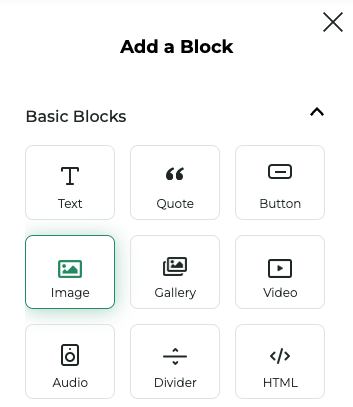
Choosing an image
When you first insert an image, the Choose Image modal will open, allowing you to select an image from your computer or upload a new one.
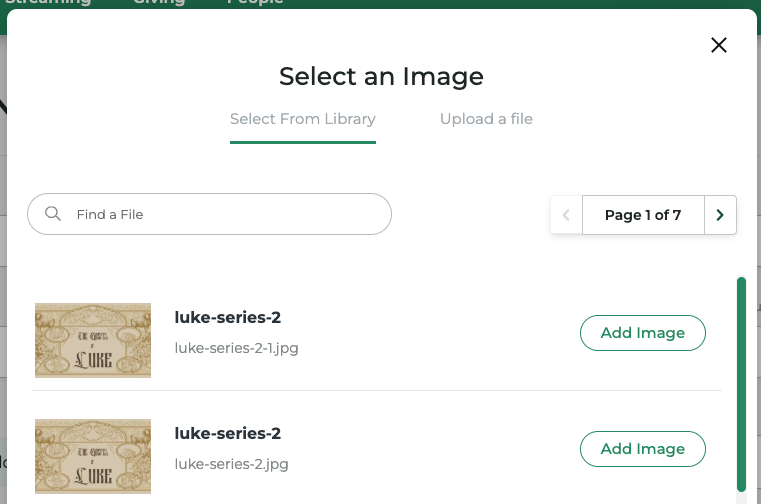
Image Properties
Floating Toolbar
Clicking on an inserted image reveals a floating toolbar with quick edit actions: 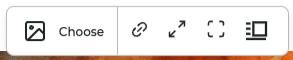
- Select Image: Choose an image from your computer or upload a new one.
- Link Image: Add a link to the image.
- Size: Change the size of the image.
- Border roundedness: Control the roundedness of the image.
- Align Image: Align the image to the left, right, or center of your page. By default,
all images are centered.
Properties Panel
Clicking the options button in the block toolbar opens up the Image Block Properties Panel.
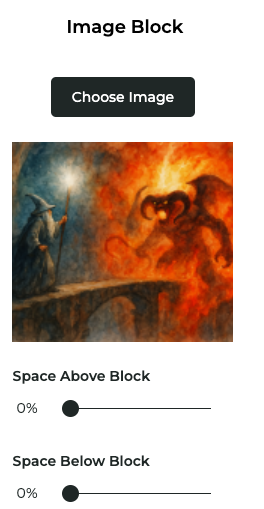
Within the panel, you can choose a different image as well as adjust the spacing above and below the image.